Put SafeEar on your home screen
SafeEar installs on your phone like any other app — its own icon, its own splash screen, and no browser bar. Your conversations stay private either way; installing is purely about convenience.
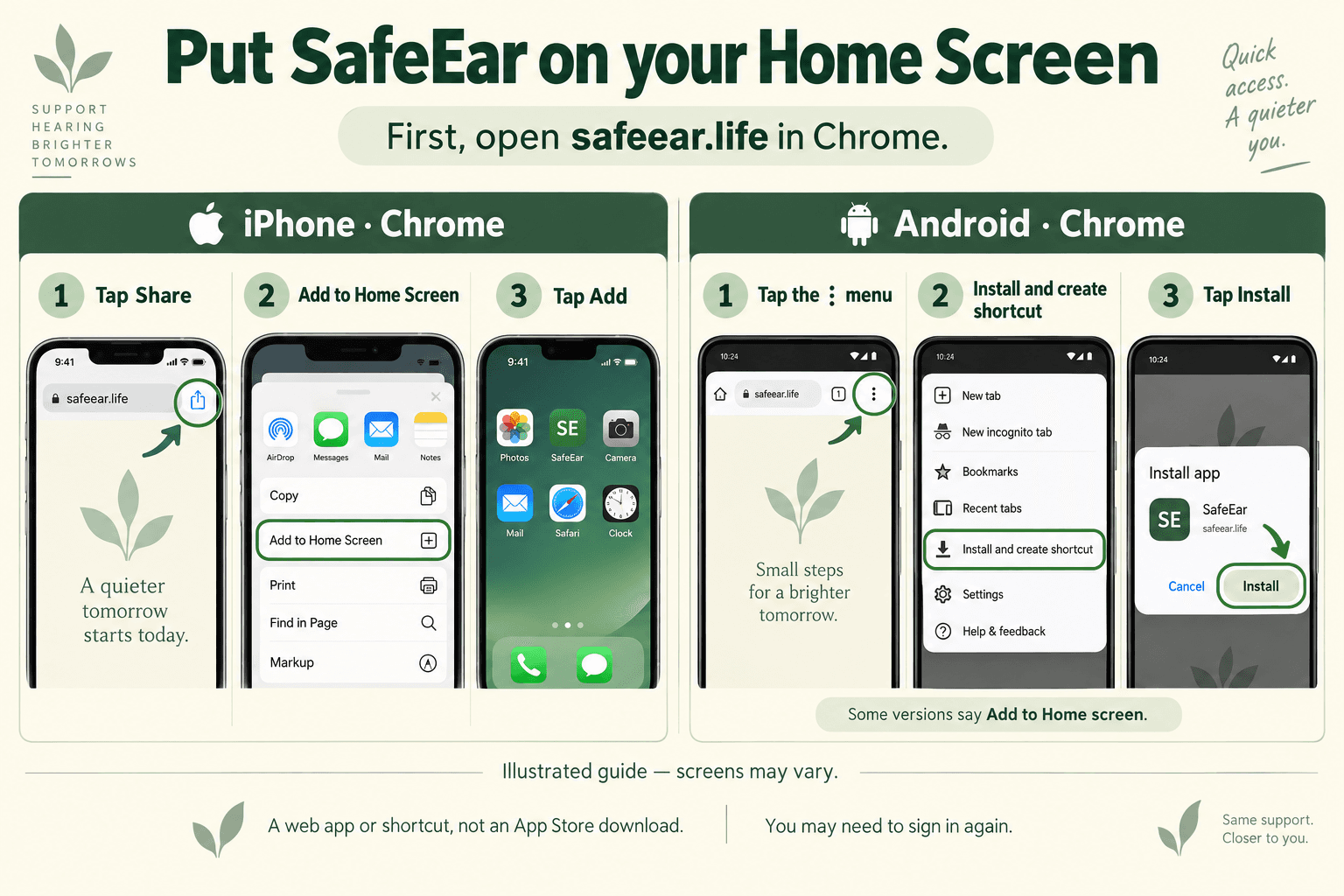
Android — Chrome
- Open Chrome and go to safeear.life.
- Tap the three-dot menu in the top right.
- Choose "Add to Home screen", then "Install".
- SafeEar opens from your home screen with its own icon and no address bar.
iPhone and iPad — Safari
Apple only allows apps to be added from Safari, so use Safari rather than Chrome.
- Open Safari and go to safeear.life. Chrome on iOS cannot install apps — use Safari.
- Tap the Share button (the square with an arrow pointing up).
- Scroll down and tap "Add to Home Screen".
- Tap "Add". SafeEar opens from your home screen with its own icon.
If the option is missing
- Check you are on https://safeear.life and not a preview or staging address.
- Safari sometimes hides “Add to Home Screen” until the page has finished loading.
- If you previously added and then removed the app, open the page again before retrying.
Questions? Get in touch through SafeEar and we will help.